SimpleSave - Browser Extension
SimpleSave is a browser extension which helpfull in note taking instantly in web browser.
Why it is developed?
- Considering students and business professionals this tool was developed. As a student/business professionals daily they need to learn something new and for future reference they need to take note of it.
- For that situation, they need to create a word document or any other which is outside of web browsers. To make them more productive this
SimpleSaveweb extension was developed.
Tools and Language used?
- Text Editor -
VScode. - Languages -
HTML,CSSandJavaScript. - Others - Google Fonts, Bootstrap and PS.
Features
| Features | Avalability |
|---|---|
| User friendly | Yes |
| Proctoring | No |
| Cloud Storage | No |
| Tracking | No |
| Single click to add note | Yes |
| Single click to save note | Yes |
| Single click to edit note | Yes |
| Easy Access | Yes |
| Supported Platform | NA |
How to use?
Step 1 : Open your favorite browser and go to Settings
Note : You need to ensure that browser can support extensions and I use Chrome browser for demostration.
chrome://settings/
Step 2 Click on Extensions
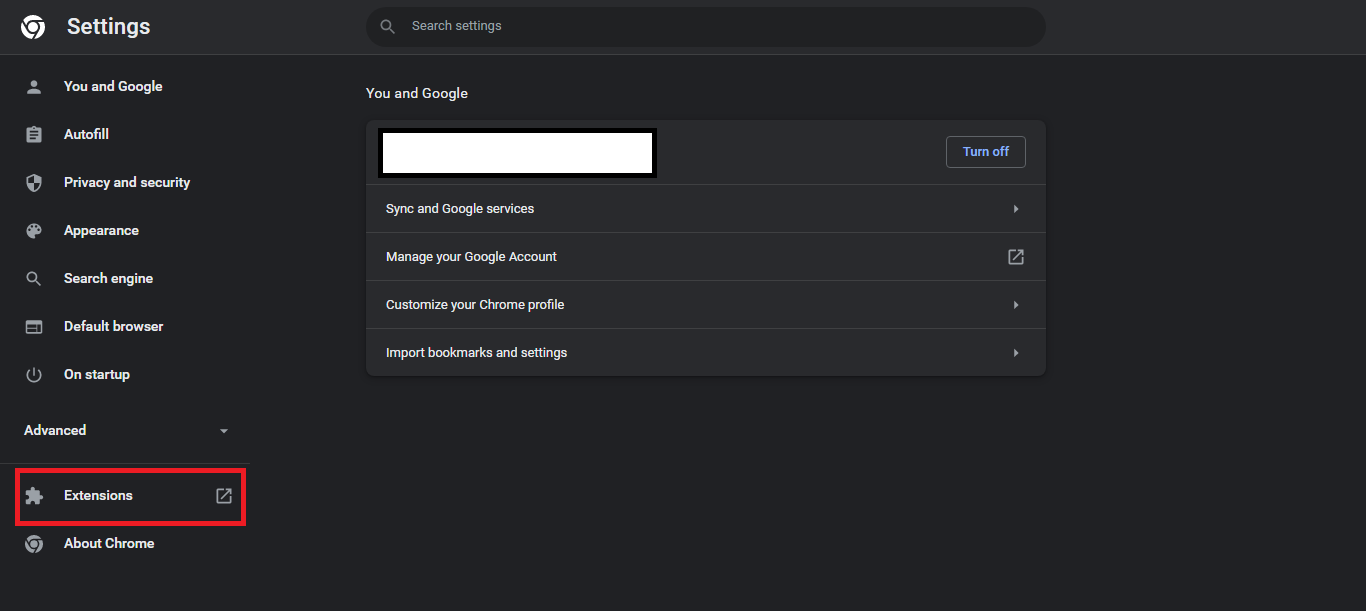
You can directly navigate to extensions by pasting this
chrome://extensions/in search bar of browser.</br>
Step 3 : Now you can see the extension you had already installed in browser. At top-right you can see a
toggle button named as Developer mode and you need to enable it.
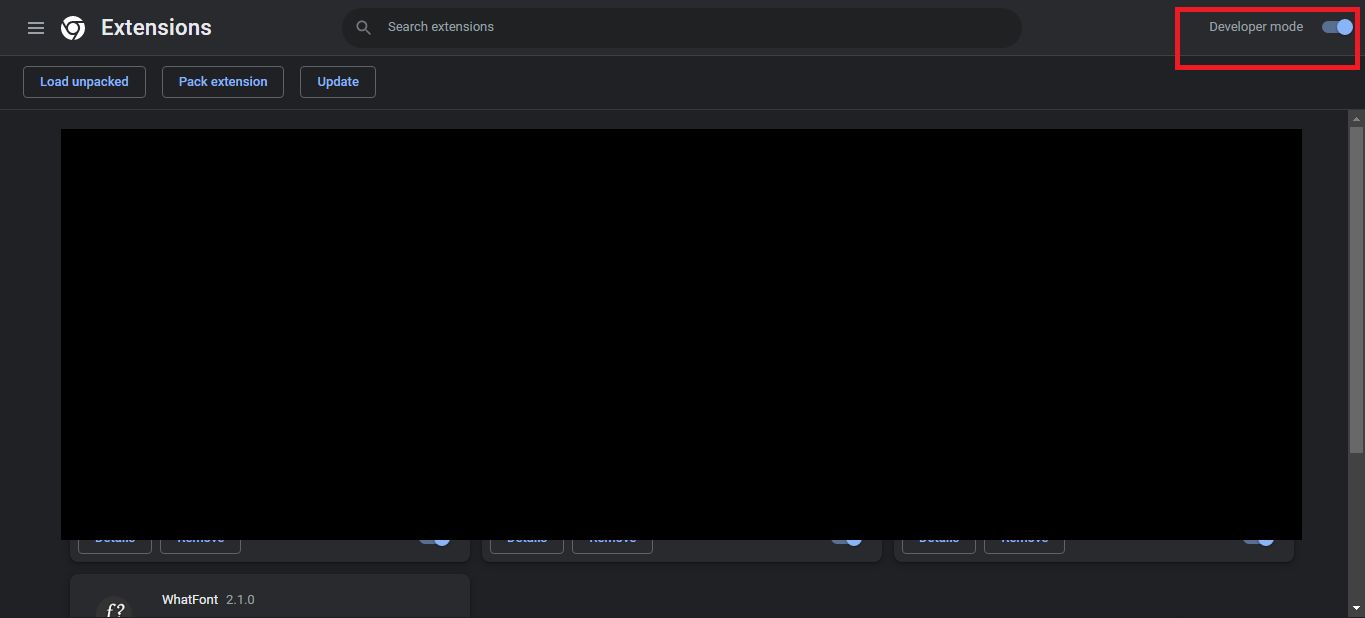
Step 4 : After enable the Developer mode you can see the three buttons named as Load upacked, Pack extension and update.
Note : You can also see it on above image.</br>
Step 5 : Now, You need to clone the extension repository Link.
Optional : You can also download as
.zipfile and extract it.
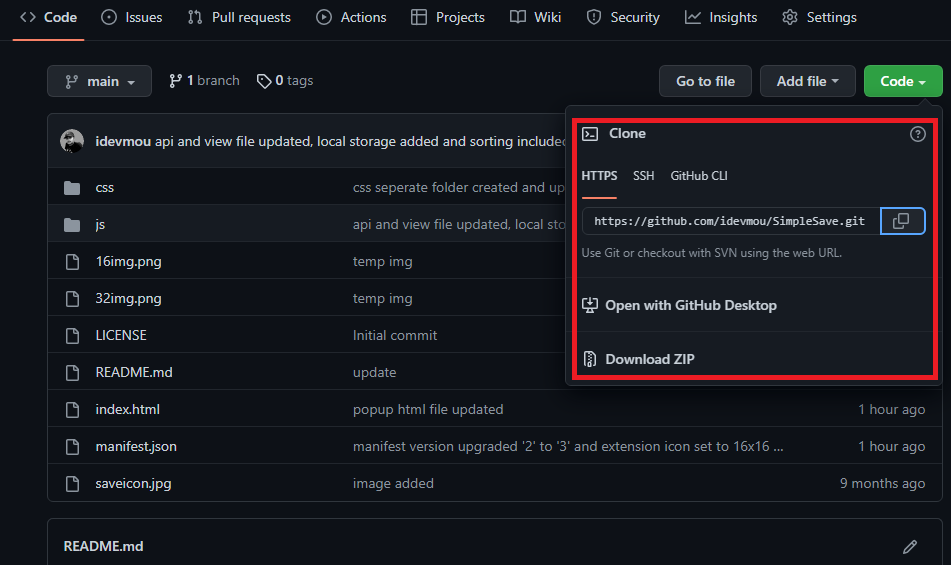
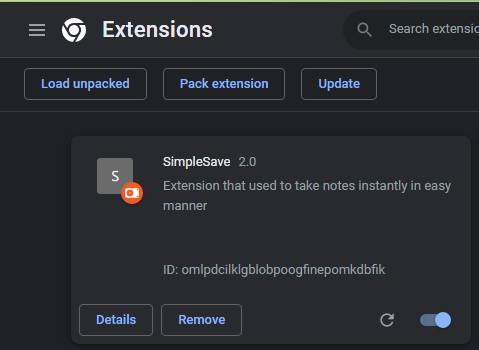
Step 6 : After cloning or extracting go to Step 4 then click on Load upacked and locate the cloned or extracted folder of SimpleSave and click the option Select folder in file explorer window.
Finally, You had successfully installed SimpleSave extension in your browser
Guides for use
- Click on
Add Notebutton to create default note.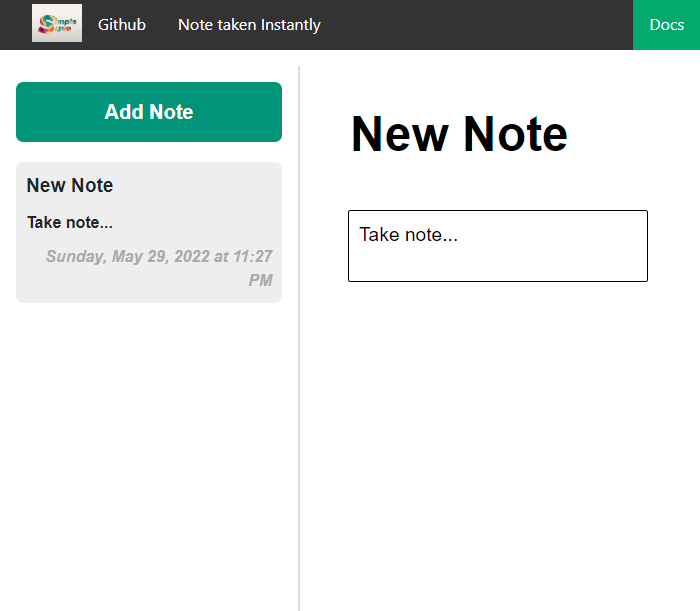
- You can able to
editandsavejust by one click it once.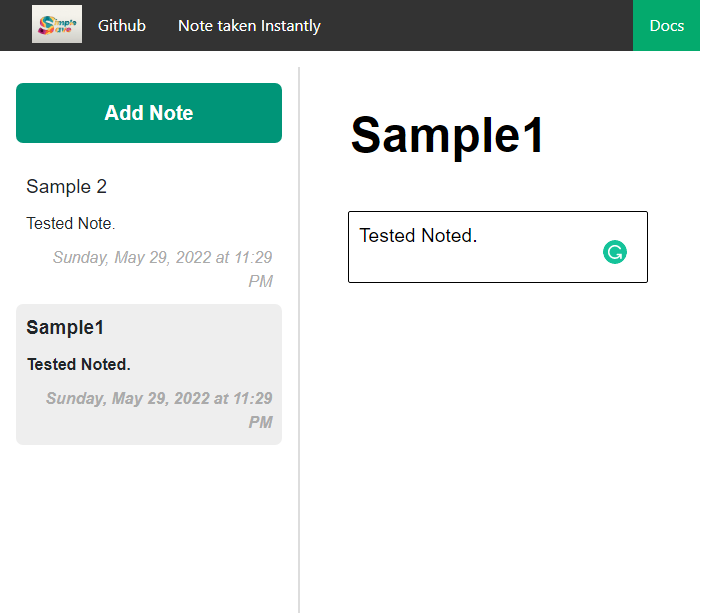
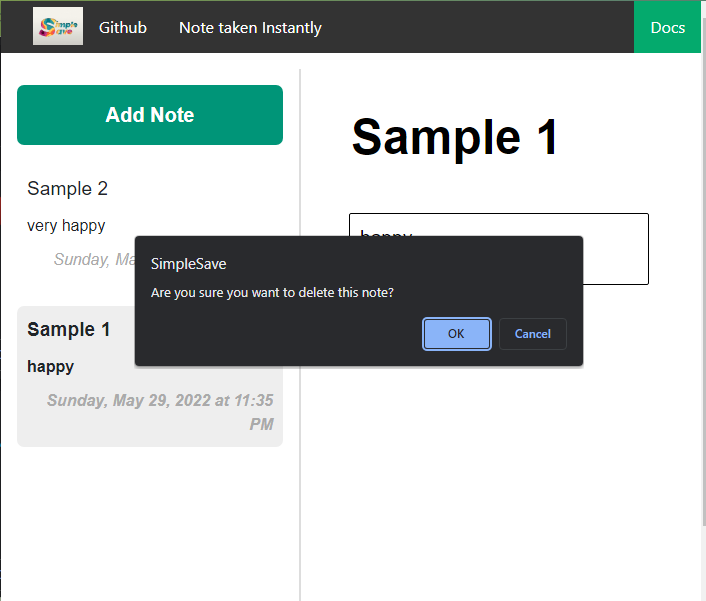
- Double click to
delete.
Supported Browsers
| Browsers | Support |
|---|---|
 |
Yes |
 |
Yes |
 |
Yes |
 |
Yes |
 |
NA |